Rollback Form
The Rollback Form feature allows you to restore a form design to a previously published version. This is useful when you need to revert changes, fix issues introduced in newer versions, or return to a stable configuration. When performing a rollback, all updates made after the selected version will be discarded, and the form will be restored exactly as it was at that published point in time.
To rollback the form:
Step 1: Open a form design
Login as Form Administrator or user who has "Edit Form Design" permission.
From the Featured Form on "My Dashboard" Page, click on the Form Title to open the form submission.
• Or, if the form you want to access is not displayed in the Featured Form section, click on "Forms" link on the top navigation bar and then select the form that you want to access.
• System will be routed to the desired form.In the left navigation bar, click "Form Settings" > "Form Designer" link to go to the Form Designer page.
Step 2: Click the vertical ellipsis beside the "Publish Form" button
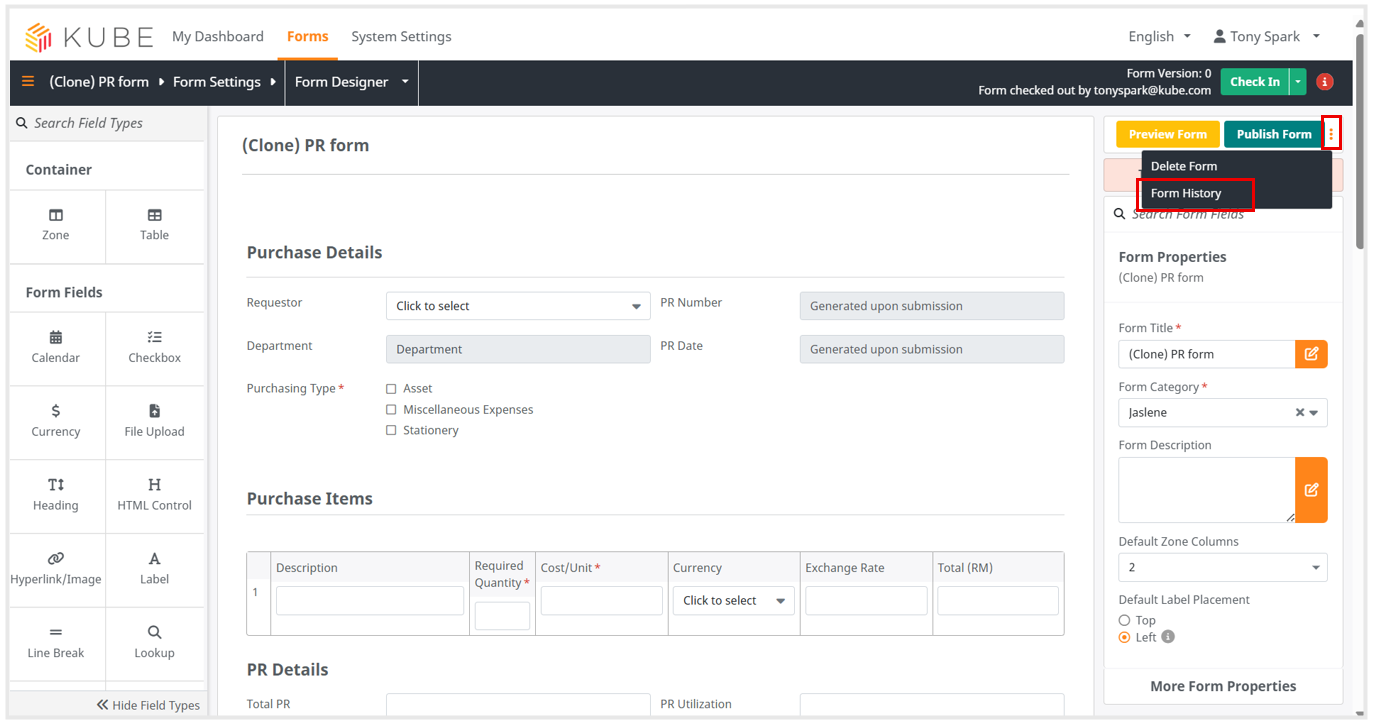
At top right, click the vertical ellipsis beside the Publish Form button.
Click Form History at the dropdown options after clicking the vertical ellipsis to enter Form History Page.
Step 3: Choose the Published Version
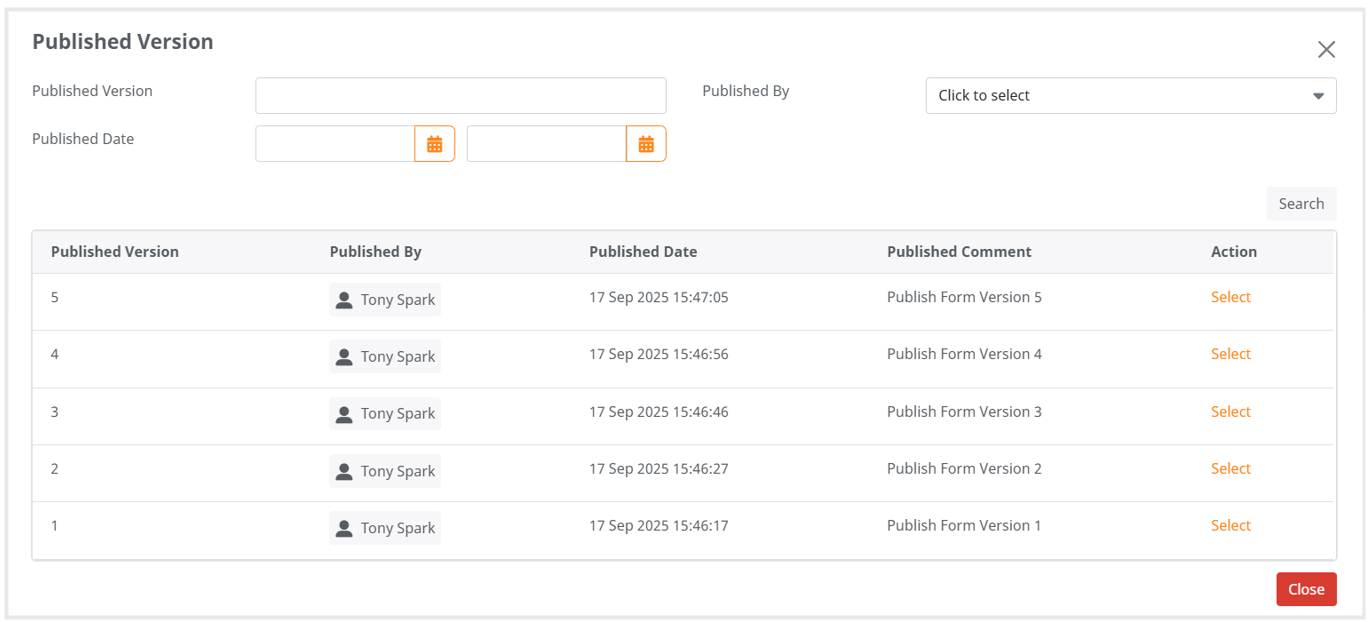
Click the Pulished Version dropdown.
In the Published Version popup window, you can apply filters to locate the desired version. Then, click the "Select" button to preview the form design version before rolling back to it.
Step 4: Rollback the Form Design
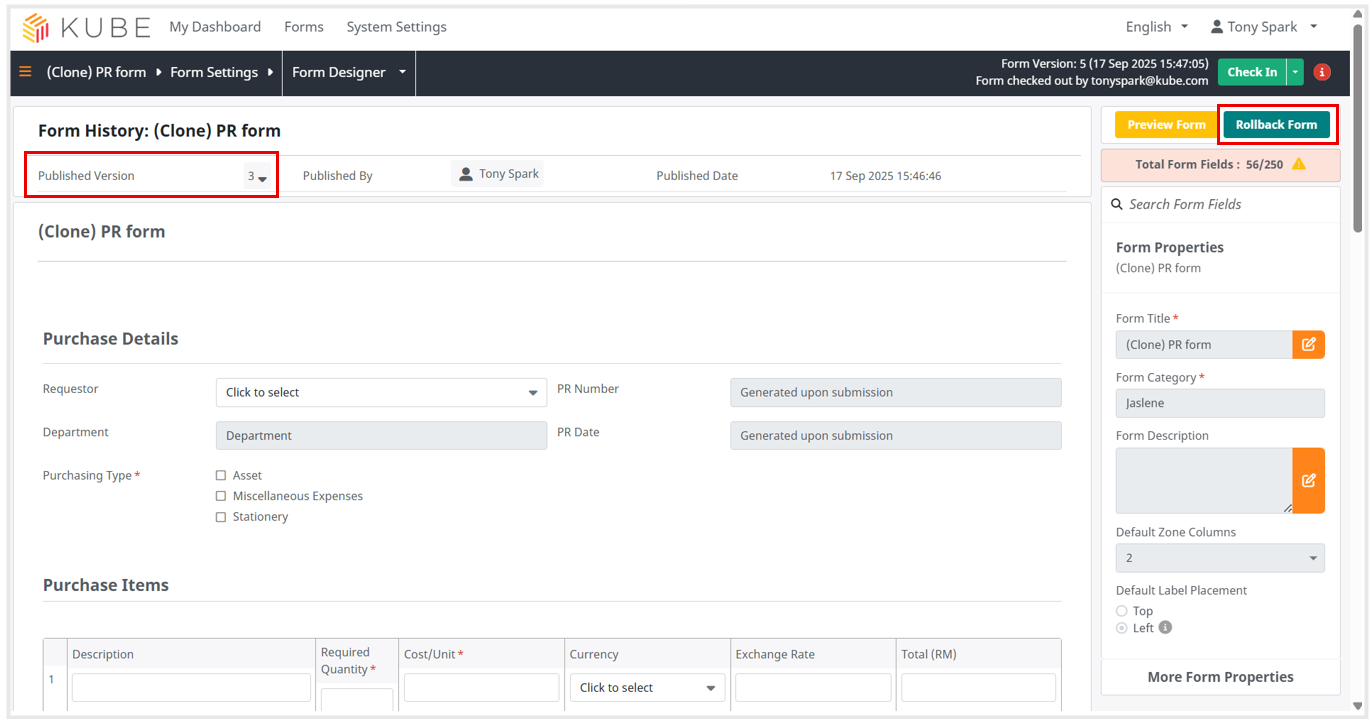
- At top right, click "Rollback Form" button to roll back the form design back to that specific form version.